

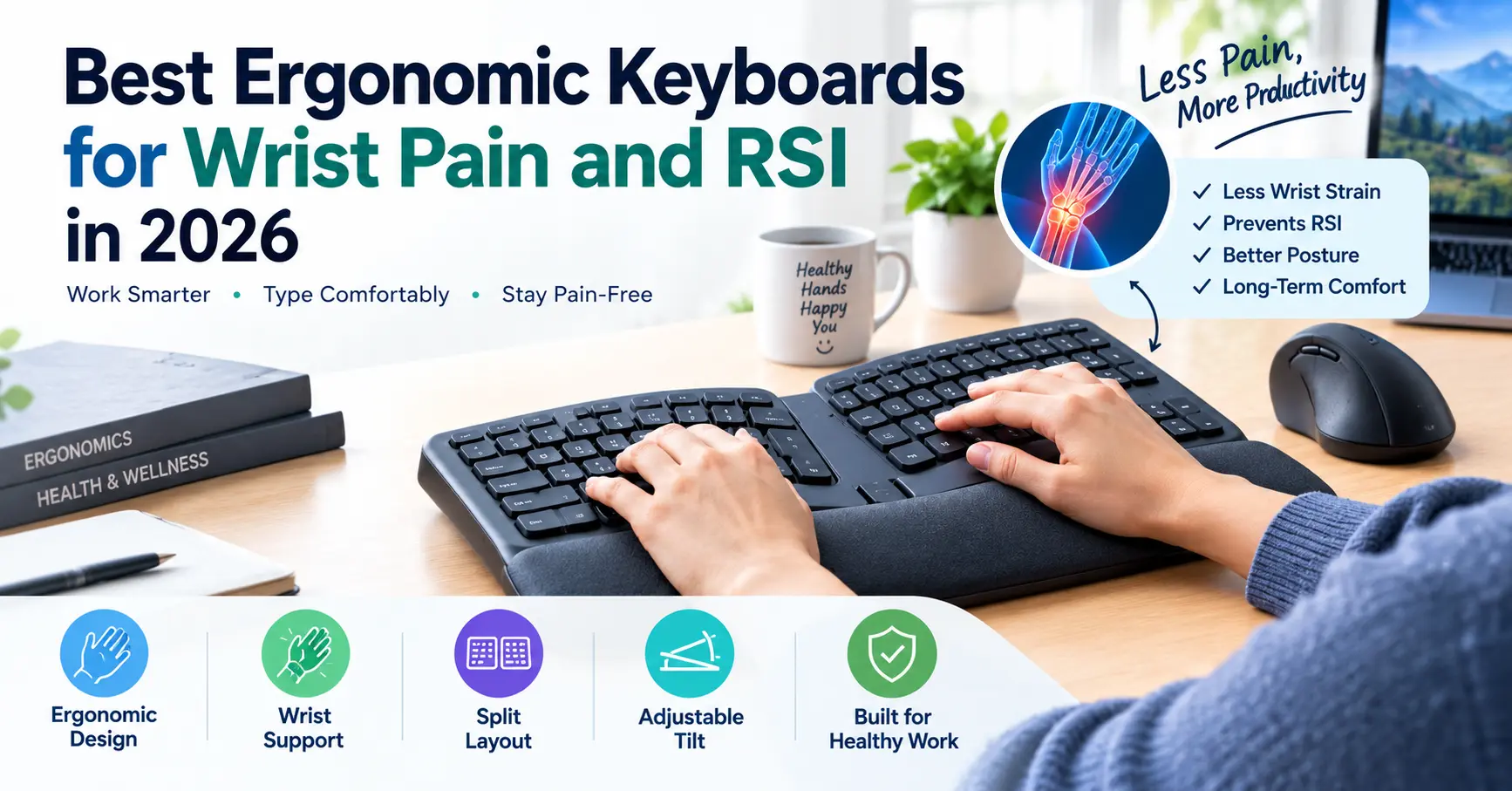
If you spend several hours a day typing, coding, gaming, editing videos, or working at a computer, your keyboard can have a major effect on how your hands and wrists feel.
A standard keyboard is not automatically bad for your wrists. However, its fixed layout can sometimes encourage awkward wrist angles, excessive reaching, or prolonged static positions. An ergonomic keyboard changes the way your hands interact with the keys, with designs that may help create a more comfortable typing position.
In this guide, we look at the best ergonomic keyboards for wrist pain and RSI in 2026, including split, curved, mechanical, and low-profile options. We will also explain what features matter, how to set up an ergonomic keyboard, and why your mouse and overall desk setup are just as important.
Important: An ergonomic keyboard can improve comfort and positioning, but it is not a medical treatment for RSI, carpal tunnel syndrome, or other conditions. Persistent pain, numbness, tingling, or weakness should be discussed with a qualified healthcare professional.
Quick Answer: What Is the Best Ergonomic Keyboards for Wrist Pain?
There is no single ergonomic keyboard that works best for everyone.
For users who want maximum adjustability, the Kinesis Advantage360 is one of the most distinctive choices because of its split, column-based design.
For people who want a compact split keyboard, the ZSA Voyager is worth considering.
The Keychron Q10 offers a more familiar mechanical-keyboard experience with a split layout, while the Logitech Wave Keys provides a simpler curved design for people who do not want to completely change their typing habits.
| Keyboard | Design | Best For |
|---|---|---|
| Kinesis Advantage360 | Split, columnar | Maximum ergonomic adjustment |
| ZSA Voyager | Low-profile split | Programmers and compact setups |
| Keychron Q10 | Split mechanical | Mechanical keyboard users |
| Logitech Wave Keys | Curved/wave | Beginners and office users |
Why Can a Keyboard Affect Wrist Comfort?
When you type, your fingers repeatedly move while your wrists and forearms maintain a relatively stable position.
With a traditional flat keyboard, your hands usually remain close together. Depending on your desk height, keyboard angle, hand size, and typing technique, this can contribute to uncomfortable wrist positioning.
An ergonomic keyboard attempts to address some of these issues through design.
Common ergonomic features include:
- Split keyboard layouts
- Tented sections
- Curved key arrangements
- Negative or adjustable tilt
- Low-profile switches
- Thumb clusters
- Programmable keys
- Adjustable positioning
The goal is not simply to make a keyboard look unusual. The goal is to let your hands and arms work in a more natural position.
However, an ergonomic design does not automatically guarantee pain relief. A poorly adjusted ergonomic keyboard can still be uncomfortable.
Best Ergonomic Keyboards for Wrist Pain and RSI in 2026
1. Kinesis Advantage360
The Kinesis Advantage360 takes a very different approach from a conventional keyboard.
Instead of keeping all the keys on a flat surface, its two sections are separated and arranged around the natural shape of your hands. The keys use a columnar layout, which can reduce the amount of lateral finger movement required during typing.
The split design also lets you position each half separately.
This can be useful if you prefer keeping your hands farther apart while typing.
Why consider it?
- Highly ergonomic layout
- Split keyboard design
- Columnar key arrangement
- Multiple adjustment possibilities
- Suitable for long typing sessions
Potential downside: There is a learning curve. If you have used a traditional keyboard for years, the layout may initially feel unfamiliar.
2. ZSA Voyager
The ZSA Voyager is designed for people who want a compact split keyboard without giving up programmability.
Its low-profile design makes it significantly smaller than many traditional ergonomic keyboards. The two keyboard halves can be positioned independently, allowing users to experiment with hand spacing and wrist positioning.
It is particularly interesting for programmers and power users because programmable layouts can reduce the need to reach for certain keys.
Best for: Developers, writers, and advanced users who enjoy customizing their keyboard.
Potential downside: It is not the easiest choice for someone looking for a simple plug-and-play keyboard.
3. Keychron Q10
If you like mechanical keyboards but want something more ergonomic than a traditional rectangular board, the Keychron Q10 is an interesting option.
Its split-style layout separates the left and right sections while retaining many characteristics mechanical-keyboard users expect.
It can make the transition from a standard mechanical keyboard easier than moving directly to a highly specialized ergonomic layout.
Why consider it?
- Mechanical typing experience
- Split layout
- Customization options
- Familiar keyboard format
- Suitable for work and programming
The main drawback is that it is still a substantial keyboard, so it may not suit people with very small desks.
4. Logitech Wave Keys
For someone who wants a more ergonomic shape without completely changing their typing habits, the Logitech Wave Keys is a simpler alternative.
Its wave-shaped layout changes the positioning of the keys while keeping the overall keyboard experience familiar.
That makes it a practical starting point for office workers who are moving away from a conventional flat keyboard for the first time.
Best for: Office workers, writers, students, and people who want a gradual transition.
Potential downside: It does not offer the same level of positioning flexibility as a true split keyboard.
What Features Should You Look for in an Ergonomic Keyboard?
The word “ergonomic” covers many different designs. Instead of choosing a keyboard simply because it is marketed as ergonomic, look at the features that match your needs.
1. Split Design
A split keyboard separates the left and right sides.
This allows you to move each half independently and find a hand position that feels natural.
For some users, this is one of the biggest advantages of an ergonomic keyboard.
2. Tenting
Tenting raises the inside edges of the keyboard sections.
Instead of keeping your palms completely flat, tenting can create a more neutral forearm and wrist position.
Some keyboards offer adjustable tenting, while others use a fixed design.
3. Negative Tilt
A keyboard that slopes downward away from you can sometimes reduce the need to extend your wrists upward.
However, the ideal angle depends on your desk height, chair position, keyboard thickness, and typing style.
More adjustment is not always better. Comfort should guide the setup.
4. Low-Profile Keys
Low-profile keyboards require less vertical finger movement.
Some users find this comfortable during long typing sessions, although switch type and key feel are also important.
A low-profile keyboard is not automatically more ergonomic, but it can be a useful feature depending on your preferences.
5. Programmable Keys
Programmable keys allow you to move frequently used commands closer to your fingers.
For programmers and power users, this can reduce repetitive reaching.
However, programming a keyboard should support your workflow rather than make it unnecessarily complicated.
Ergonomic Keyboard vs Regular Keyboard
The biggest difference is usually positioning.
A traditional keyboard keeps both hands in a relatively fixed position. An ergonomic keyboard may allow you to change the distance, angle, height, or orientation of each hand.
| Feature | Traditional Keyboard | Ergonomic Keyboard |
|---|---|---|
| Hand positioning | Fixed | Often adjustable |
| Split layout | Rare | Common |
| Tenting | Rare | Available on some models |
| Learning curve | Minimal | Can be higher |
| Customization | Limited to moderate | Often higher |
| Desk space | Usually compact | Varies |
| Price | Often lower | Often higher |
The important point is that an ergonomic keyboard is a tool, not a guarantee of better health.
Your setup, posture, breaks, typing technique, and workload all matter.
Can an Ergonomic Keyboard Help With RSI?
Repetitive strain injury, or RSI, is a broad term often used to describe pain or discomfort associated with repetitive activity.
Keyboard use can involve thousands of small finger movements over the course of a working day.
An ergonomic keyboard may help some users maintain a more comfortable position, but evidence should not be interpreted as meaning that a particular keyboard can prevent or cure every form of RSI.
If you already experience persistent symptoms, changing your keyboard should be only one part of the solution.
Pay attention to symptoms such as:
- Persistent wrist pain
- Tingling
- Numbness
- Burning sensations
- Weakness
- Reduced grip strength
- Pain that continues after computer use
If symptoms are persistent or getting worse, professional medical advice is more appropriate than simply buying new hardware.
What About Carpal Tunnel Syndrome?
Carpal tunnel syndrome involves compression of the median nerve at the wrist. Symptoms can include numbness, tingling, pain, and weakness in parts of the hand.
Keyboard use does not mean someone will automatically develop carpal tunnel syndrome.
If you are specifically researching the connection between gaming, computer use, and these symptoms, you can read our detailed guide on carpal tunnel syndrome in gamers.
The important distinction is that an ergonomic keyboard may help you find a more comfortable working position, but it should not be treated as a medical solution.
Your Mouse Matters Too
Many people upgrade their keyboard while continuing to use a mouse that forces their wrist into an uncomfortable position.
That can defeat some of the benefits of improving your keyboard setup.
Mouse shape, grip style, size, weight, sensor position, and sensitivity can all affect how much your hand and forearm move during computer use.
If mouse-related wrist discomfort is part of your problem, our guide to the best ergonomic mouse for gamers can help you understand the features worth considering.
For gaming in particular, mouse movement can involve thousands of repeated actions, making the entire workstation more important than any single device.
Wrist Rests and the Rest of Your Setup
A wrist rest can be useful, but it should not force your wrists into a particular position.
Ideally, your keyboard should be positioned so your shoulders remain relaxed and your elbows stay relatively close to your body.
Your wrists should not be aggressively bent upward while typing.
This is also where accessories such as the Deltahub Carpio can become part of a broader workstation discussion.
If you are considering the Carpio G2.0, our Deltahub Carpio G2.0 review covers the product separately rather than treating a wrist rest as a replacement for good keyboard positioning.
If you are deciding between different versions, you can also see our Carpio 2.0 vs Carpio G2.0 comparison before choosing an accessory.
Don’t Ignore Your Elbows and Forearms
Wrist comfort is only one part of an ergonomic workstation.
Your forearms and elbows also remain active while typing and gaming.
Long periods of repetitive movement can contribute to discomfort around the forearm and elbow area. If you are experiencing pain around the outside of the elbow, it may be useful to learn more about gamers elbow and tennis elbow symptoms.
This is another reason why changing only your keyboard may not solve every ergonomic problem.
Think about your complete workstation rather than one individual product.
How to Set Up an Ergonomic Keyboard Correctly
Buying an ergonomic keyboard is only the first step.
Use these basic setup principles:
Keep Your Shoulders Relaxed
Your keyboard should be close enough that you do not have to reach forward.
If your shoulders remain raised while typing, your desk or keyboard position may need adjustment.
Keep Your Elbows Comfortable
Your elbows should remain relatively close to your body instead of constantly reaching outward.
Avoid Excessive Wrist Extension
Try not to position the keyboard so your hands are forced sharply upward.
Experiment with keyboard height and angle until the position feels comfortable.
Keep the Mouse Close
A mouse placed too far away can make you repeatedly reach outward with your arm.
Keep frequently used devices within an easy reach.
Take Regular Breaks
Even the best ergonomic keyboard cannot compensate for sitting in the same position for many uninterrupted hours.
Short breaks can give your hands, wrists, arms, shoulders, and eyes a chance to move and relax.
Are Mechanical Keyboards Good for Wrist Pain?
Mechanical keyboards are not automatically ergonomic.
Their suitability depends on the specific design.
A mechanical keyboard with a standard flat layout can still encourage an uncomfortable wrist position. At the same time, an ergonomic mechanical keyboard can combine mechanical switches with a split or adjustable design.
Therefore, don’t choose a keyboard simply because it is mechanical.
Instead, consider:
- Keyboard height
- Key travel
- Switch force
- Layout
- Split design
- Tenting
- Wrist position
- Overall typing comfort
The best switch is ultimately the one that feels comfortable for your hands and does not require excessive force.
Best Ergonomic Keyboards for Different Users
| User Type | Recommended Type | Why |
|---|---|---|
| Office worker | Logitech Wave Keys | Easy transition |
| Programmer | ZSA Voyager | Compact and programmable |
| Mechanical keyboard fan | Keychron Q10 | Mechanical + ergonomic layout |
| Ergonomics enthusiast | Kinesis Advantage360 | Highly distinctive design |
| Long-session typist | Split ergonomic keyboard | Flexible hand positioning |
| Beginner | Curved/wave keyboard | Lower learning curve |
These categories are starting points rather than universal rules. Hand size, desk space, typing technique, and personal comfort can change which design works best.
Common Mistakes When Buying Ergonomic Keyboards
Choosing Based Only on Marketing
A product can have the word “ergonomic” in its name without being comfortable for you.
Look at the actual design.
Making a Sudden Switch
Moving directly from a traditional keyboard to an advanced split or columnar keyboard can take time.
Give yourself an adjustment period.
Ignoring Keyboard Height
A great keyboard placed too high can still create an uncomfortable setup.
Using a Wrist Rest Incorrectly
A wrist rest should support a comfortable position. It should not force your wrists into a fixed angle while you type.
Forgetting the Mouse
Your keyboard and mouse work together. If one causes uncomfortable positioning, the other cannot completely compensate.
For users building a more complete ergonomic workstation, comparing different wrist and ergonomic accessories can also be useful. For example, our Deltahub Carpio vs Logitech ergonomic products comparison looks at these products from a broader workstation perspective.
Frequently Asked Questions
What is the best ergonomic keyboard for wrist pain?
There is no universal best option. The Kinesis Advantage360, ZSA Voyager, Keychron Q10, and Logitech Wave Keys all use different approaches. The right choice depends on your hand position, typing style, desk space, and comfort.
Are ergonomic keyboards good for RSI?
Ergonomic Keyboards may help some people maintain a more comfortable hand and wrist position. However, it should not be considered a treatment or guaranteed solution for RSI. Persistent symptoms should be evaluated professionally.
Is a split keyboard better for your wrists?
A split keyboard can give you more control over hand spacing and positioning. Some users find this more comfortable, but the benefit depends on individual anatomy, setup, and adjustment.
Can a keyboard cause carpal tunnel syndrome?
Keyboard use alone does not mean that someone will develop carpal tunnel syndrome. If you have numbness, tingling, pain, or weakness in your hand or wrist, consider discussing the symptoms with a healthcare professional.
Is a mechanical keyboard ergonomic?
Not automatically. Mechanical keyboards can be ergonomic when combined with a suitable layout, height, key force, and positioning. The mechanical switch itself does not make a keyboard ergonomic.
Final Verdict
The best ergonomic keyboard for wrist pain and RSI in 2026 is the one that allows you to work comfortably while keeping your hands, wrists, forearms, and shoulders in a relaxed position.
For maximum adjustability, the Kinesis Advantage360 is an interesting choice. The ZSA Voyager is better suited to users who want a compact and programmable split keyboard. The Keychron Q10 is worth considering if you prefer mechanical keyboards, while the Logitech Wave Keys provides a more familiar transition for everyday office work.
But the keyboard is only one part of the equation.
Your mouse, desk height, chair, monitor position, breaks, typing habits, and overall workstation setup all influence comfort. A well-designed ergonomic keyboard can be useful, but it works best as part of a complete approach to computer ergonomics.
If you are already experiencing persistent pain, numbness, tingling, or weakness, focus on understanding the underlying problem rather than relying on a hardware upgrade alone.
